
Facebook does like to show us its own follow suggestions, group suggestions, lots of ads in fact anything other than our friends posts! This is nothing to do with Squirrelhouse of course but it is such an annoyance that I thought I’d share some tips.
There isn’t much you can do about the main page, however you can go to the Feeds and then just display your friends posts or group posts and then you don’t see all the rubbish.
BUT You will still see follow suggestions they share with you of course as they are just friend’s posts. You will probably still see ads too (any you don’t want, click on the three dots near the top right corner of the post and go down its submenu until you can click on Hide All from XYZ advertiser). You now see posts in strict chronological order (usually what you want) but if people make comments that doesn’t push it to the top again any more.
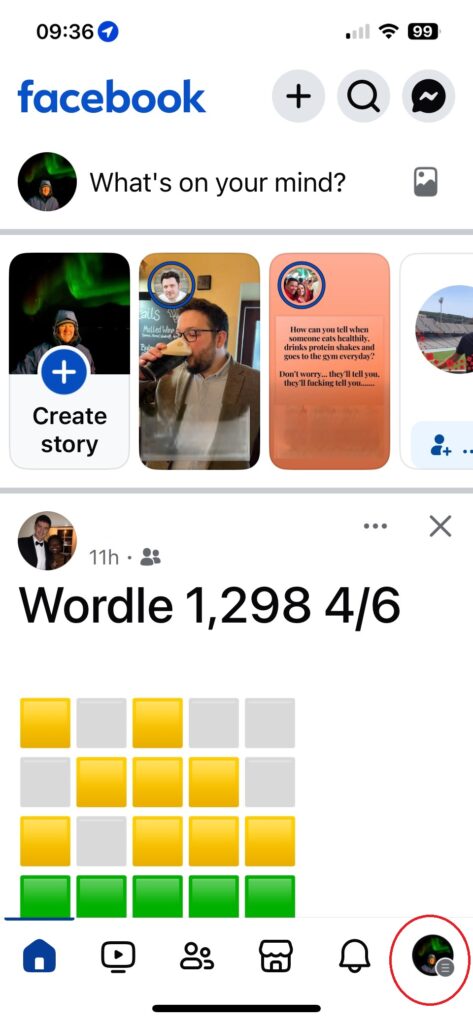
On a smart phone
- click on your profile (bottom right)

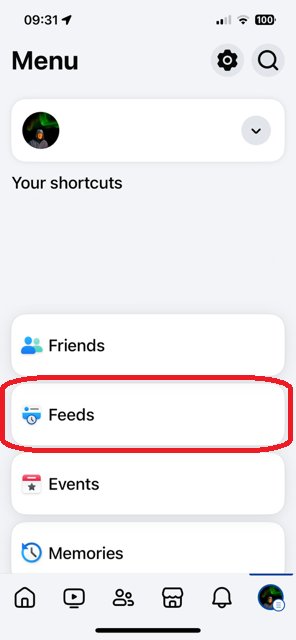
- Scroll down and click on Feeds (which might be a long way down)
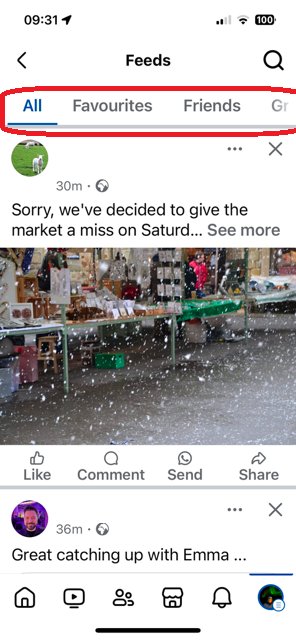
- At the top you can choose to see all, friends, groups etc.
On a PC, Mac
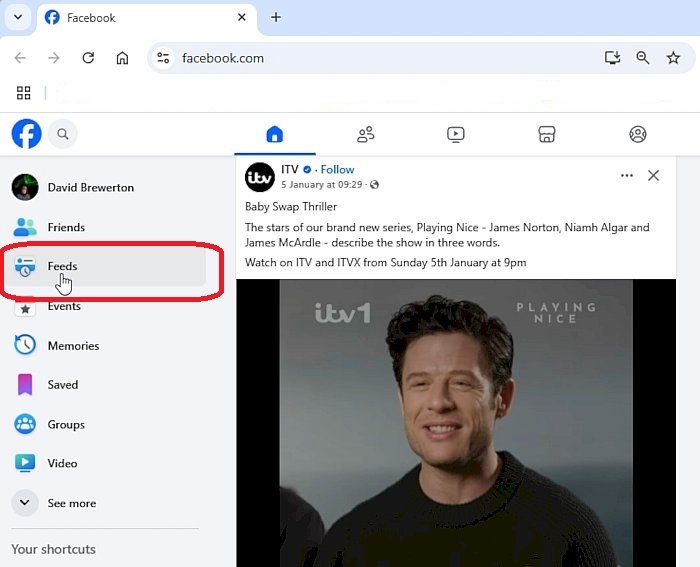
- Scroll down and click on Feeds (which might be a long way down)

- Pick which Feed you want – probably Friends or Groups

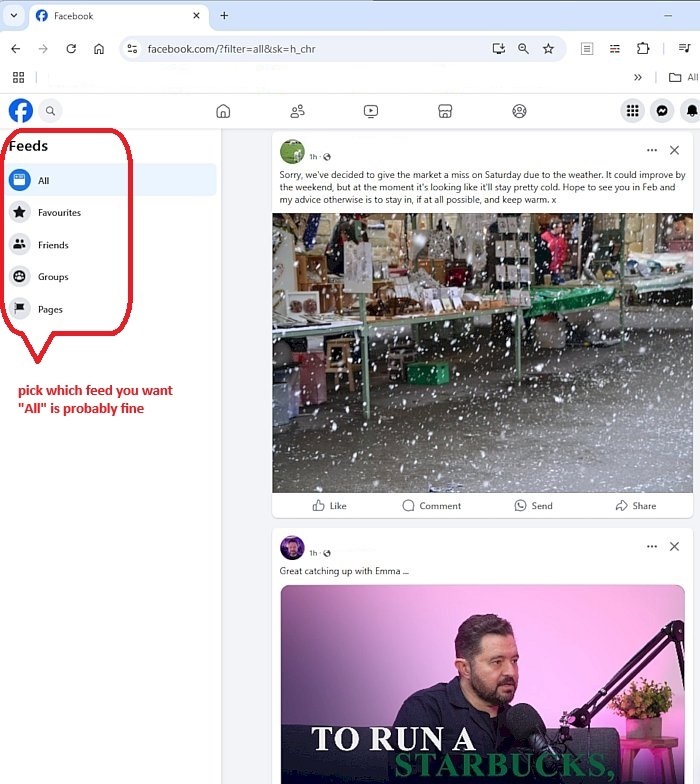
You could bookmark the feed you want to use for Facebook, eg.
Friends: https://www.facebook.com/?filter=friends&sk=h_chr