App specific instructions are further down but it’s worth reading the explanation below first as you need to choose between IMAP or POP3 mailbox access methods – how you will receive emails using IMAP or POP3 methods. STMP is the method used to send all email.
IMAP (Recommended) is like a window on your PC, tablet or smartphone through which you see your emails which stay on the server so this is the best if you have mail on more than one device so that you can see your mail anywhere.
POP3 is the oldest method which is like picking your mail up from the postoffice; the mail is then downloaded to that device and won’t then have a copy on the server; so it only really works if you have only one PC or tablet.
Our example below uses abc.co.uk as the domain name, simply replace that with your own domain name…
| Username | eg. joe@abc.co.uk |
| Password | Use the email account’s password. |
| Incoming Server |
|
Outgoing Server |
|
SMTP requires authentication – systems are all different in how you do this eg. | |
Please be aware of our acceptable use policy which limits the number of emails you can send to per hour.
You can also access emails via Webmail at:-
https://squirrelhouse.biz/webmail
For further details on Webmail visit our using-webmail page
Instructions for setting up mail apps
- Mail client automatic configuration scripts
(for Mac, iPhone, iPad, Windows Live and MS Express) - Windows 10 – Mail and Calendar
(assumes you have a GMail account only to use for your Calendar ) - Set up a new mail account on iPhone and iPad
- Set up mail on Samsung / Android smartphone
- Thunderbird mail app
Setting up email on smartphones
Smart phones are all a bit different in their settings but these links below, which open in a new window, may be helpful for navigating phone menus.
Do remember to use the settings as described above though!
.
Set up/Check a mail account on iPhone and iPad
The easiest approach is to use one of the Mail client automatic configuration scripts which are available by logging in to Webmail on your device.
However if you want to manually add an email account, check or change it the instructions are given below:-
- From Home screen, navigate: Settings > Mail
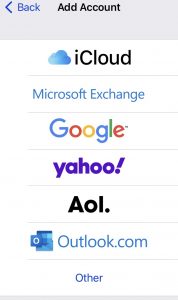
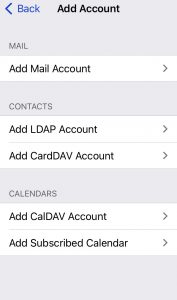
To Add an email account – pick Other

Now pick Add Mail Account

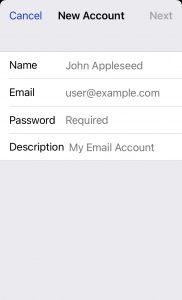
Now enter the basic details of your account

You should now refer to the setting below to ensure everything is correct
- To Check or change an email account
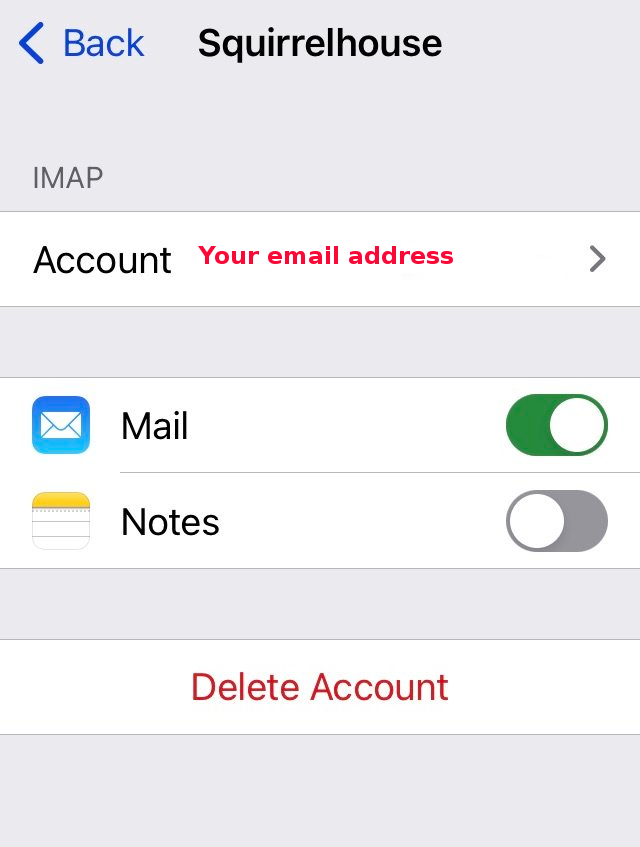
Tap on the email account you wish to change or check
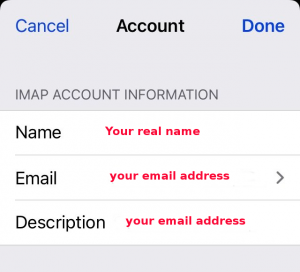
- This should bring you to a screen with IMAP and your account underneath it, tap on your account

- The Incoming Mail Server section should be like this


- Check your incoming mail settings by clicking on [Advanced]. Scrolling down the page you should come to the Incoming Settings section. Pay close attention to Use SSL and Server Port which should be 993

- Now go back to the previous screen and check your outgoing settings by clicking on the SMTP line

You will see the primary server for sending your outgoing mail first followed by other servers

- Your Outgoing Server settings should be like this. Pay close attention to Use SSL and Server Port which we recommend should be 465 (if you only see 587 that should work too).

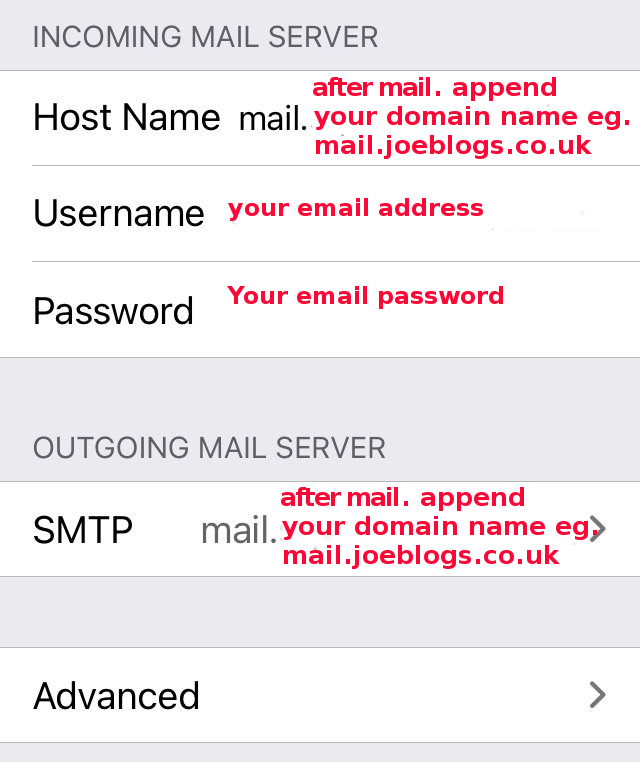
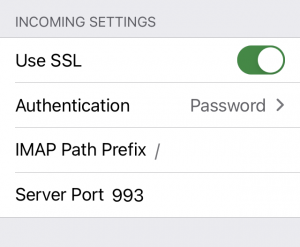
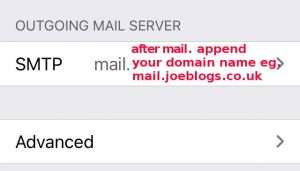
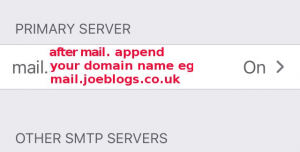

.
Set up mail on Samsung / Android smartphone
- From Home screen, navigate: Apps icon > Settings > Accounts.
- Tap Add account.
- Tap Email.
- Enter your Email address and Password then tap SIGN IN.
- Select IMAP Account
- Enter your Email address as the User name and your password again if it requires it
- Enter mail.abc.co.uk as the Incoming Server (changing abc.co.uk for your domain name)
- Enter SSL as the Security type and 995 as the Port number
- Scroll down to Outgoing server and enter mail.abc.co.uk as the outgoing server address (changing abc.co.uk for your domain name)
- Enter SSL as the Security type and 465 as the Port number (if these options aren’t there then choose TLS or STARTLS and port 587 instead)
- Tick Authentication required before sending emails
- Enter your Email address and Password again if required then tap SIGN IN.
Some alternative instructions for Android phone set up
.
Mail app specific instructions for changing existing settings
Thunderbird
1. Open Thunderbird and right-click the account you want to access the settings for.
2. Click the Settings link in the menu.
3. This will bring up the Account Settings window where you can then select the email account and click Server Settings (this bit relates to the inbound settings which may be working but might not be entirely correct so please check):-
Server type: IMAP
Server name: mail.abc.co.uk (use your domain name)
Port: 993
User name: your-email-address
Connection security: SSL
Authentication: normal password
Save and enter your password when asked and save it to your computer’s key chain
4. You should now modify the outgoing SMTP settings by clicking Outgoing Server (SMTP) on the left side of the window, then selecting the account, and clicking the Edit button
Server name: mail.abc.co.uk (use your domain name)
Port: 465
Connection security: SSL
Authentication: normal password
User name: your-email-address
Note: if SSL isn’t showing then use STARTTLS and change the outbound port to 587
Save and enter your password when asked and save it to your computer’s key chain
.
iPhone, iPad, MacOS auto configuration
Using a mail set up script from your hosting account
- Log in to Webmail https://squirrelhouse.biz/webmail via your internet browser
Use your email address’s normal username and password.- Please note: When doing a copy and paste it is easy to mistakenly also copy trailing spaces in your password! Count the black dots to see if it’s the same length as your password. You are only allowed 3 tries before it locks out your connection to the server – in which case you should follow this link:-
https://www.mysquirrelhouse.co.uk/can-you-access-your-web-and-email-server/
- Please note: When doing a copy and paste it is easy to mistakenly also copy trailing spaces in your password! Count the black dots to see if it’s the same length as your password. You are only allowed 3 tries before it locks out your connection to the server – in which case you should follow this link:-
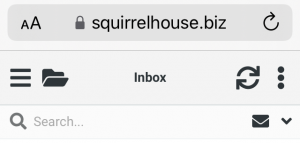
- You will probably go straight into the Roundcube webmail app and see

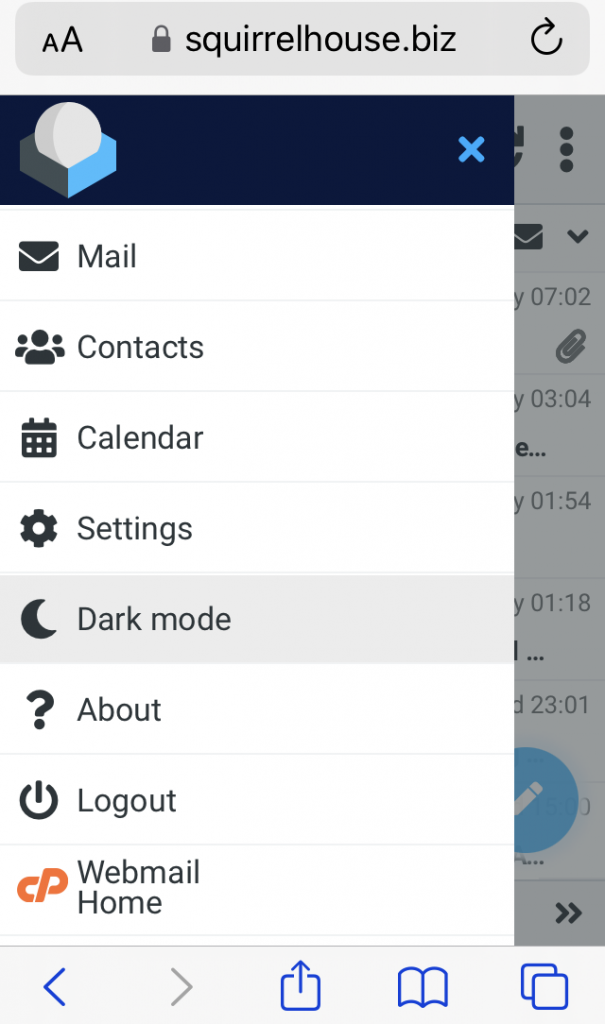
- In the top left hand corner you see the hamburger icon indicating a drop down menu. Click that and at the bottom of the menu you will see Webmail Home – click there

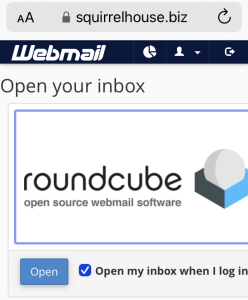
- You will see this

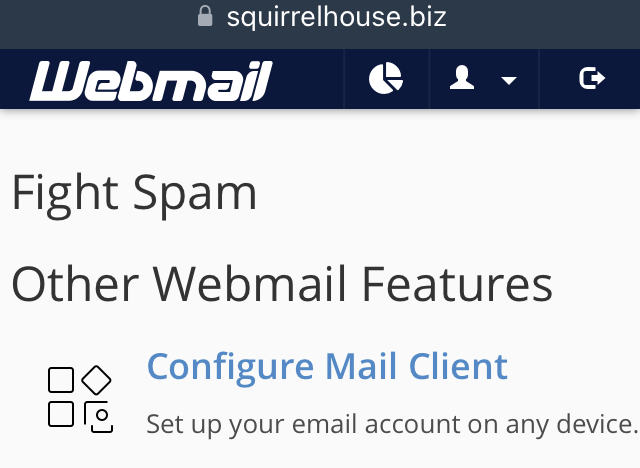
Scroll down to Configure Mail Client

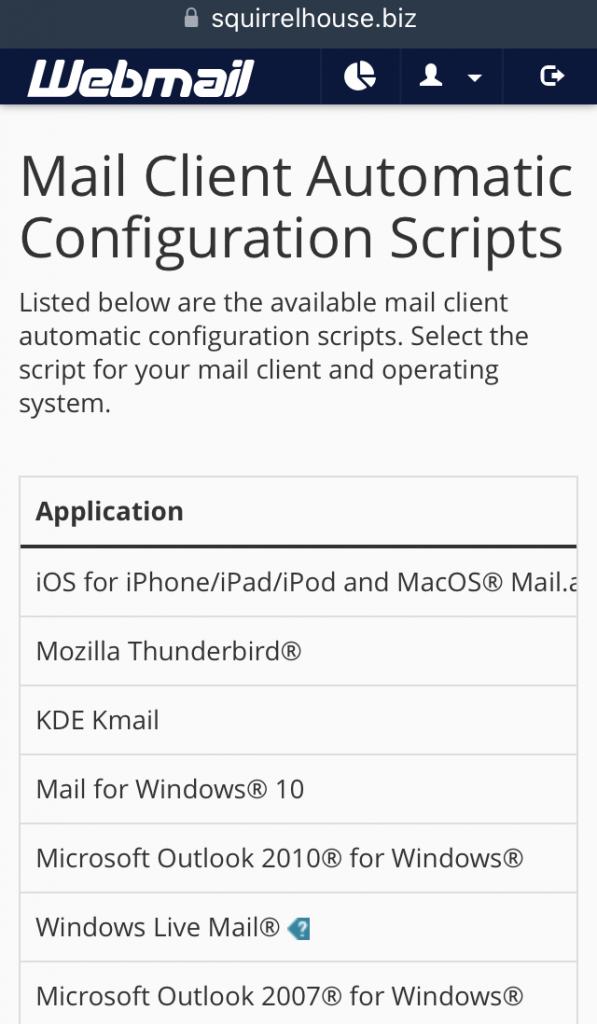
- You will then see a list of links for possible configuration scripts which you can use. Click the one that relates to your device and email application.
eg. iOS for iPhone/iPad/iPod and MacOS

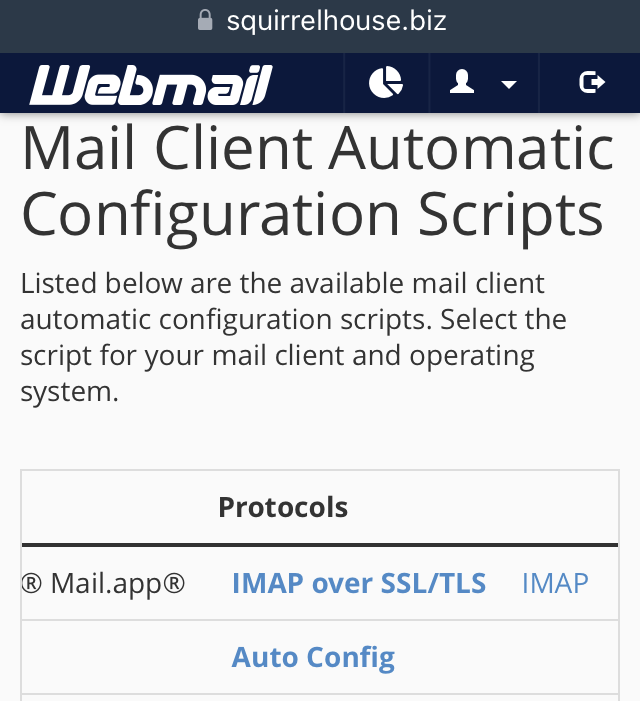
To the right of this list you will see links. Click on IMAP over SSL/TLS to download your script

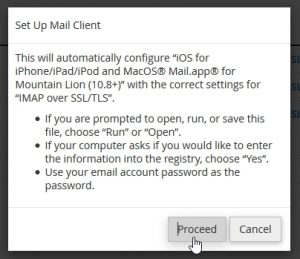
- You will see a pop up information box which you should read and follow. The one for iPhone/iPad and MacOS is shown below as an example: