
In certain circumstances it can be easier to take control of your PC and remotely make necessary changes for you. You retain the ability to break the session at any time and you can see what is being done.
Have you already got Google Chrome internet browser and the Google Chrome Remote Desktop extension? If not, follow instructions further down for how to install these first.
Already set up?
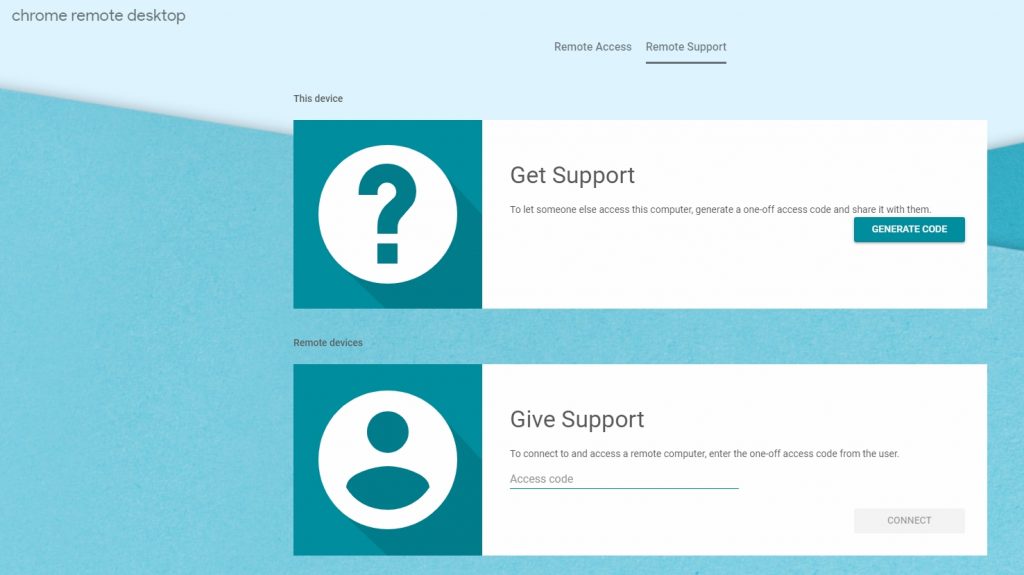
 use this link (in the Google Chrome browser) to start:- https://remotedesktop.google.com/
Now click GENERATE CODE in the Get Support Box
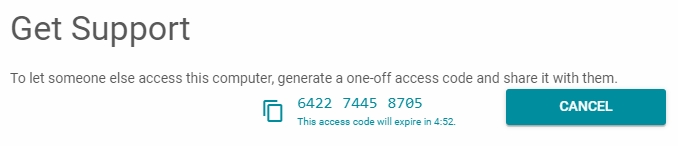
It will now generate a unique code which you need to give us to access your PC or Mac.
How to install Google Chrome and Chrome Remote Desktop
Download and Install Google Chrome (unless you already have it)
You will see download options. Once you have downloaded, install Chrome on your computer.
Now go into Google Chrome and log in (top right corner of the screen).
If you already have a Google Account use that, otherwise you will need to create an account to log in to first. This will ask for your details a password and an email address. They will then send an email with a verification number that you need to enter in Google’s verification box to complete your sign-up.
Add Chrome Remote Desktop to Google Chrome as an extension
https://remotedesktop.google.com/
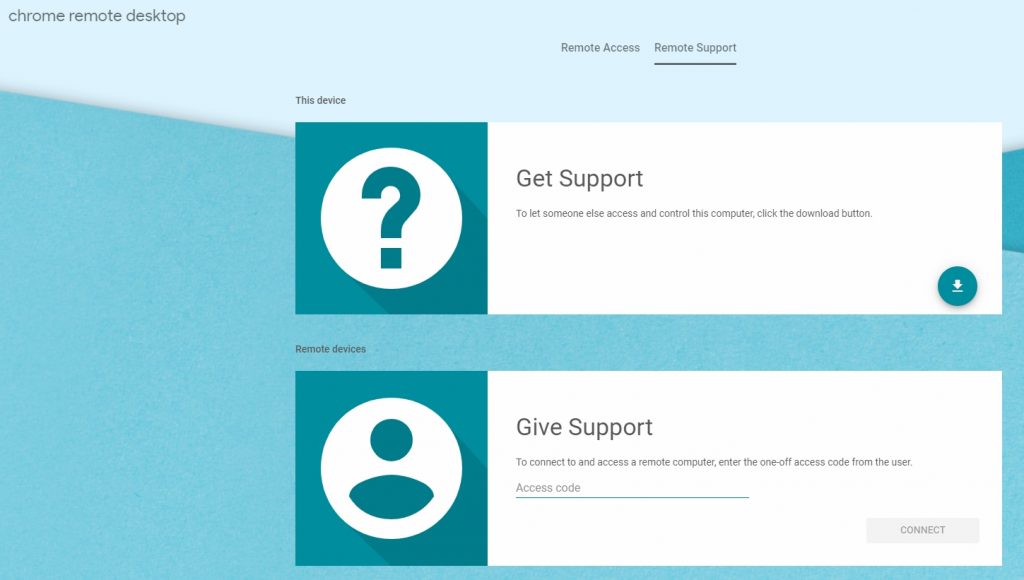
Click the download button (the down arrow) to download the remote desktop extension.
At the next screen, click [Add to Chrome]
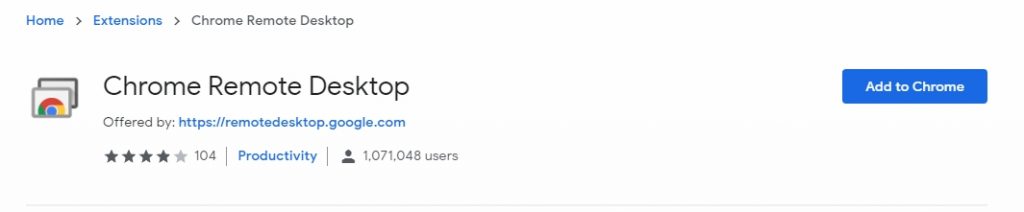
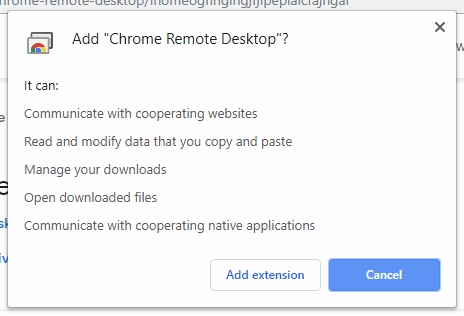
It will display a pop-up to confirm you want to add the extension, click [Add extension]
You may then see a screen saying “Ready to Install”. If you do, click [ACCEPT & INSTALL]
It may then ask if you want to Open the download. Click “Yes”
It will ask you for a device name eg, DESKTOP-L7GH64J. Please make a note of that name to give to us.
Now choose a 6 digit pin eg. part of your phone number perhaps. You can save these details in Chrome if it asks and wait for the “Do you want to allow this app to make changes to your device” message – click “Yes”.
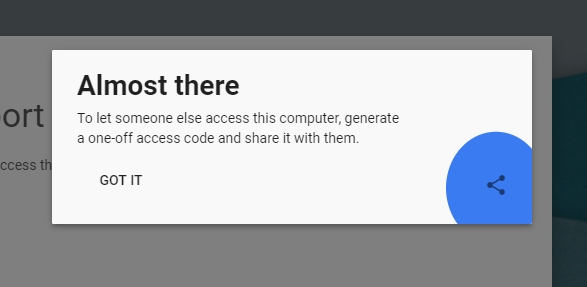
Once you see the image below, just click [GOT IT] and you are ready to go!
Now click GENERATE CODE in the Get Support Box
It will now generate a unique code which you need to give us to access your PC or Mac.