Health Warning: Unfortunately this can be a frustrating experience!
Email hosting servers often have anti-hacking protection that blocks connection attempts when they’ve used the wrong password multiple times. However, these days, people often have multiple devices with stored email passwords in so there can be lots to change and some of those devices may be trying the old password for a few minutes after you’ve changed it. The result is often that you successfully change your password but everything stops working because your internet connection (ip-address) is blocked.
If you only ever use our webmail link to access your emails you escape all this stress by just doing steps 4.2 to 4.6 below.
Scenario: eg. you have a PC, a laptop and a Smart Phone.
- Decide on a new password – make it more than 8 characters long, include letters and numbers and have a special character in there such as @ or ! or # or = or .
- Phone: Go into Aireline mode
- Laptop: Turn off Wifi (or unplug Ethernet cable)
On the PC assuming Windows:
- Close down Outlook, Thunderbird or whatever you use to access emails
- Open up your internet browser and go to https://squirrelhouse.biz/webmail
- Enter your existing username and password
- At top right of the screen, click on the little down arrow next to your email address

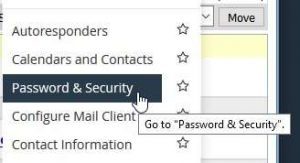
- You will see a drop down menu, click on Password & Security

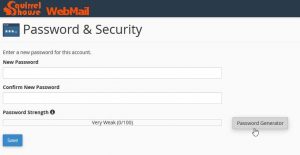
- You now get the opportunity to enter a new password and confirm it. You will see a password strength meter to show you how safe your new password is. You can pick the one it generates for you if you like!

- Changing your password in Outlook on your PCChanging Outlook within Windows 7 is shown below as an example only. For other mail applications or Windows versions consult their documentation.
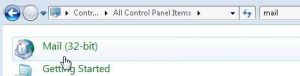
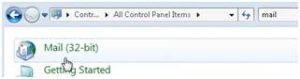
- Go to Control Panel and enter “mail” in the search box.
- Windows 7 and 8 look like this:-

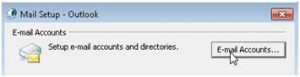
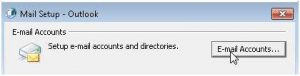
Click on Mail as above, then click on E-mail Accounts as below…
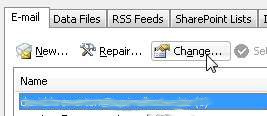
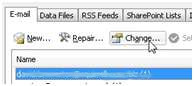
 Now select your email account and click Change as below…

- Change your password for your Mail app and Save
- You can now open your Mail and check you can send and receive emails normally
On a smart phone
Please note your mail server is mail.yourdomain.etc
- iPhone Example
- Settings
- Accounts & Passwords >
- Pick your email account >
- IMAP Account >
- Incoming Mail Server
- Password = enter new p/w
- Outgoing Mail Server – SMTP >
- Primary Server – On >
- Password = enter new p/w and
[Done] and [Done] again - Turn off Airline mode and
turn off Wi-Fi so that you are connecting via mobile data - Check you can send and receive emails ok
- Samsung Example
- Apps
- Samsung
- Menu (to the left of Inbox)
- Settings (cog wheel icon)
- Pick your email account
- Server Settings
- Incoming server settings
- Password = enter new p/w and [Done]
- Outgoing server settings
- Password = enter new p/w and [Done]
- Now turn off Airline mode and turn off Wi-Fi so that you are connecting via mobile data only
- Check you can send and receive emails ok
- iPhone Example
On a Windows Laptop
- Go to Control Panel and enter “mail” in the search box.
- Windows 7 and 8 look like this:-

Click on Mail as above, then click on E-mail Accounts as below…
Now select your email account and click Change as below…

- Change your password for your Mail app and Save
- You can now reconnect your Wifi or Ethernet cable, open your Mail and check you can send and receive emails normally

 Now select your email account and click Change as below…
What if it all goes horribly wrong and you can’t connect anymore?
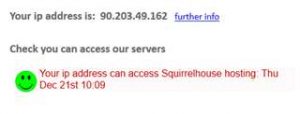
- Check if you can still connect to our Email server by opening your internet browser and going to our access checking page

- If you see a Green smiley face then your internet connection hasn’t been blocked yet so double-check what you’ve done above.
- If you don’t see a Green smiley face then your internet connection has been blocked. The most likely cause is that you’ve forgotten another device that you can see emails on which still has the old password. You should change the password on that device then reboot your router to get a new ip-address (as described on our access checking page)